
Updating a Current Situation (Work History) on a Person
What are Situations?
A Situation is an entity record of a Person's Work History or Education.
A Person can be related to multiple Situations but only ever has one Current Situation — i.e. where they are currently working, or at least the latest known place of work.
Comprehensive Situations allow users to understand and search over a Person's work history, including job titles, dates, company information, and Tags.
Situations are created, and a Current Situation is set, in the following scenarios:
- When you create a new Person, a Current Situation is created using the information entered on the Person form.
- When you Parse a CV, several Situations are created (or matched with existing ones) against the new or existing Person, and a single Current Situation is set as decided by the user in the Parsed CV record. (See: Processing a Parsed CV)
- The creation of a Placement creates a Situation and sets it as the Current Situation against the Person (Candidate). (See: Placements and Amendments)
- Clicking the Update Situation button on a Person record will allow you to either update an existing Situation or create a new Situation. See below for more detail.
Note: Several fields on the Person record are locked, such as Job Title. These must be updated through the Current Situation of the Person record, which will in turn back-populate the Person record.
⚠️ A Person's Current Situation is NOT set through dates — it is set by triggers / an event.
Updating Situation on a Person with NO Current Situation
If a Person has no Current Situation, there will be a "Create New Situation" button in the ribbon of the Person form.
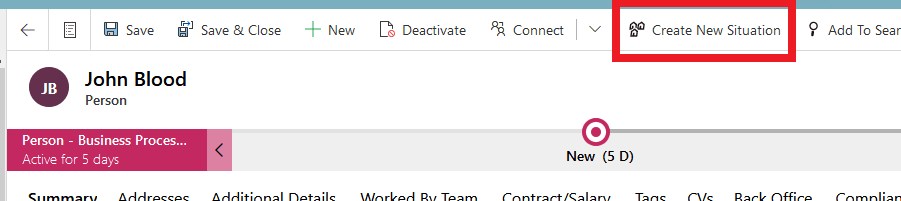
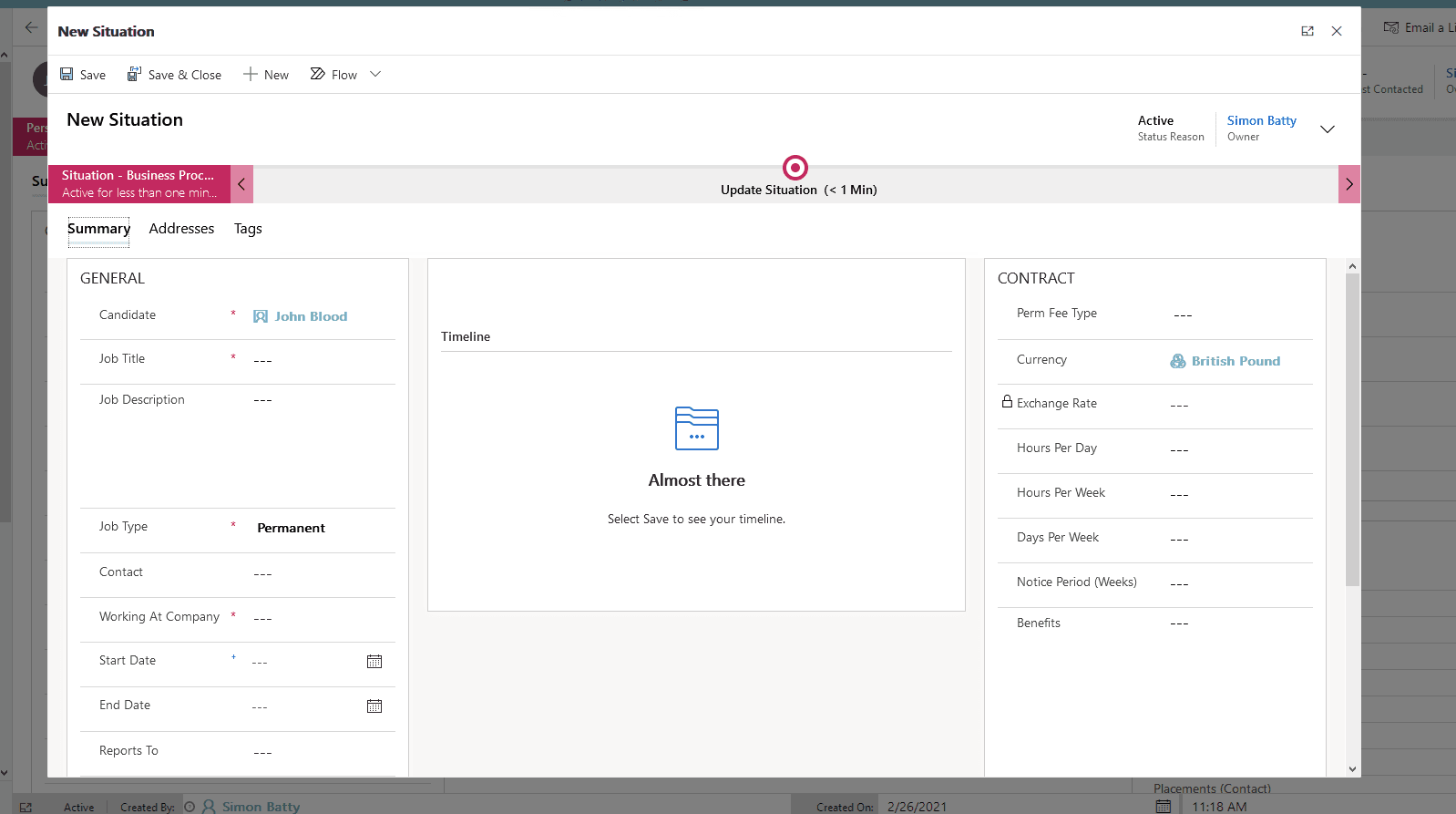
Clicking this button will present the Situation form in a window where the user can enter information for a new Situation. After the Situation is created, the new Situation will be assigned as the Current Situation on the Person record.
Updating Situation on a Person who HAS a Current Situation
Creating a New Noncurrent Situation
If a Person does have a Current Situation, there will be an "Update Situation" dropdown button in the ribbon of the Person form. The dropdown contains two options: "Update Current Situation" and "Create Noncurrent Situation".

Clicking "Create Noncurrent Situation" behaves similarly to the above. The Situation form is presented in a window where the user can enter information for a new Situation. The key difference is that the newly created Situation will not be assigned as the Current Situation of the Person.
Updating the Current Situation
Clicking "Update Current Situation" will display the Current Situation record in a window.
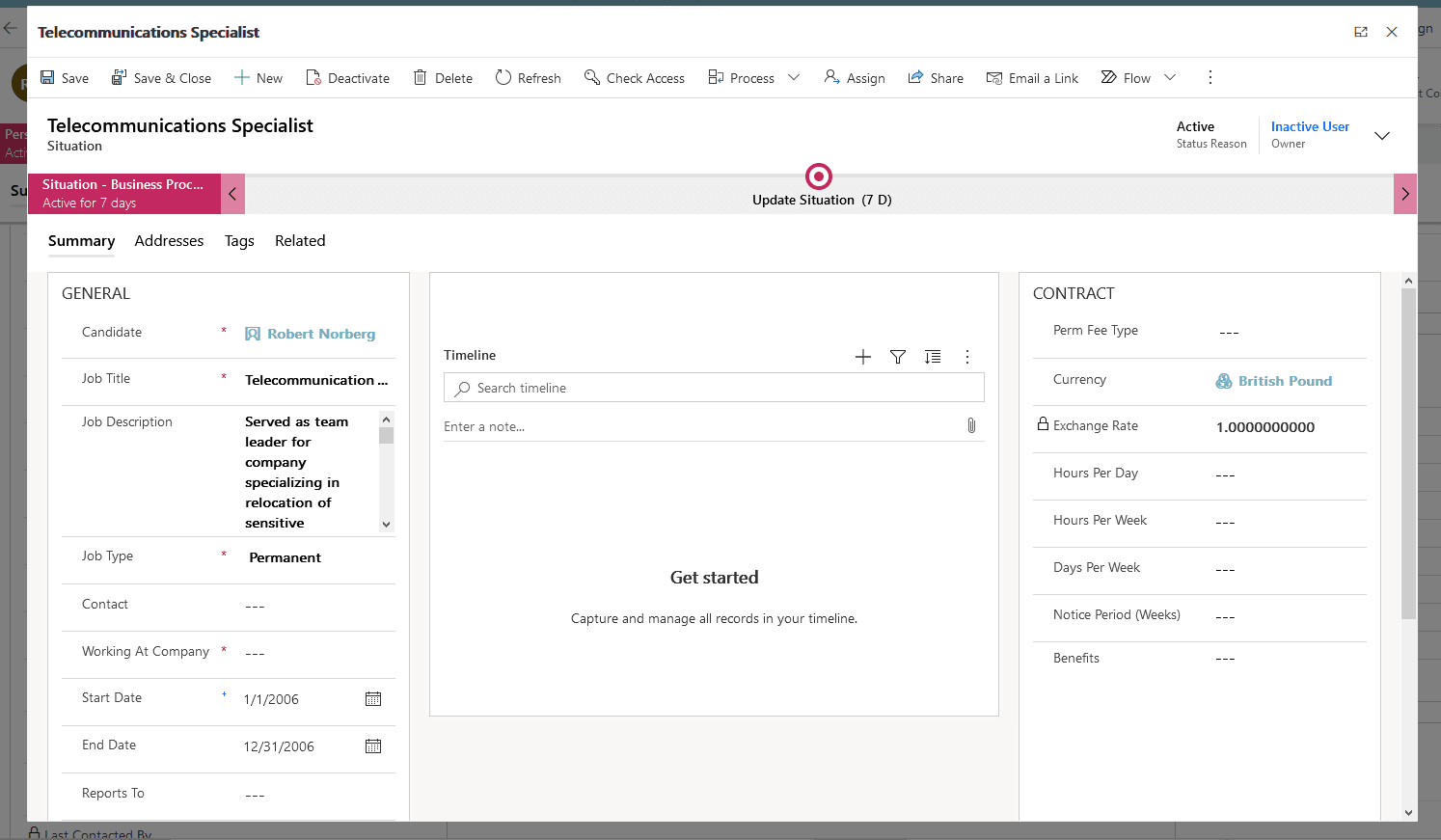
In this window, if the Situation did not originate from a Placement, the user can apply any updates to the record.
If the Situation did originate from a Placement record (and is therefore locked), refer to the Placements and Amendments guide for more information on updating the Person's Current Situation and key employment information.
When the Current Situation is updated, any key fields that also appear on the Person form (e.g. Job Title, Start Date) will be updated with the latest information from the Current Situation.
Creating a New Current Situation
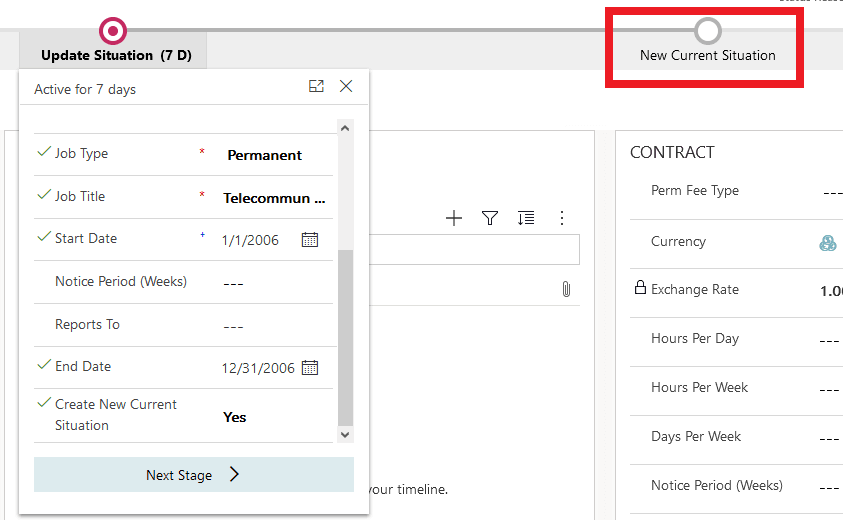
The Situation Form includes a Business Process Flow (BPF) which can be used to standardise data input on Situations. If the Situation record is the Current Situation of the Candidate, there will be a field named "Create New Current Situation" at the bottom of the "Update Situation" stage of the BPF.
This field can be used to create a new Situation record for the Candidate, which will then become the Current Situation of the Candidate. When this field is set to "Yes", a second stage named "New Current Situation" will appear.
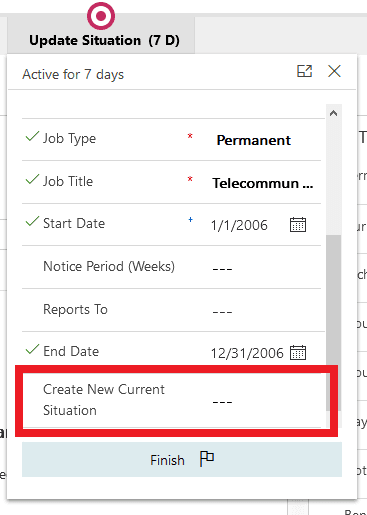
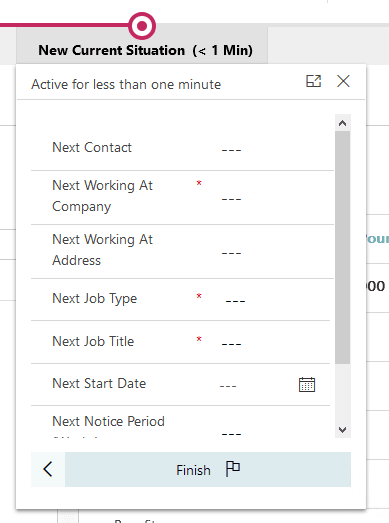
Once all information has been entered (either via the BPF or the form directly), click "Next Stage" on the BPF to navigate to the "New Current Situation" stage. This stage displays fields that will automatically populate on the next Situation record.
When all necessary fields are entered, click "Finish" on the BPF. After a short delay, you will be navigated to the newly created Situation record.
Note: You may see a warning that you are about to be navigated away from the page and will lose unsaved work. This is only a warning — the record will have been saved when the "Finish" button was clicked, so it is safe to leave the page.
On the new Situation record, you can then enter any additional information that wasn't present on the BPF of the previous record. Any updates made here will also be applied to the Person record where applicable.