❗Please note: It is vital that users Personalization Settings are configured correctly before a user starts using Pump. Especially in relation to Email Tracking once their Mailbox has been configured.
User Personalization Settings#
Personalization Settings need to be set by the User through their account or can be set en-masse by a System Administrator through XRMToolbox using the User Settings Utility.
To set Personalization Settings go to the Settings (top-right cog), then click Personalization Settings (to open the Set Personal Options Dialog):
To find out more about Personal Settings read the Microsoft information here: https://docs.microsoft.com/en-us/powerapps/user/set-personal-options
Our recommended settings are below. If you have any questions, please get in contact with your System Administrator.
General Tab #
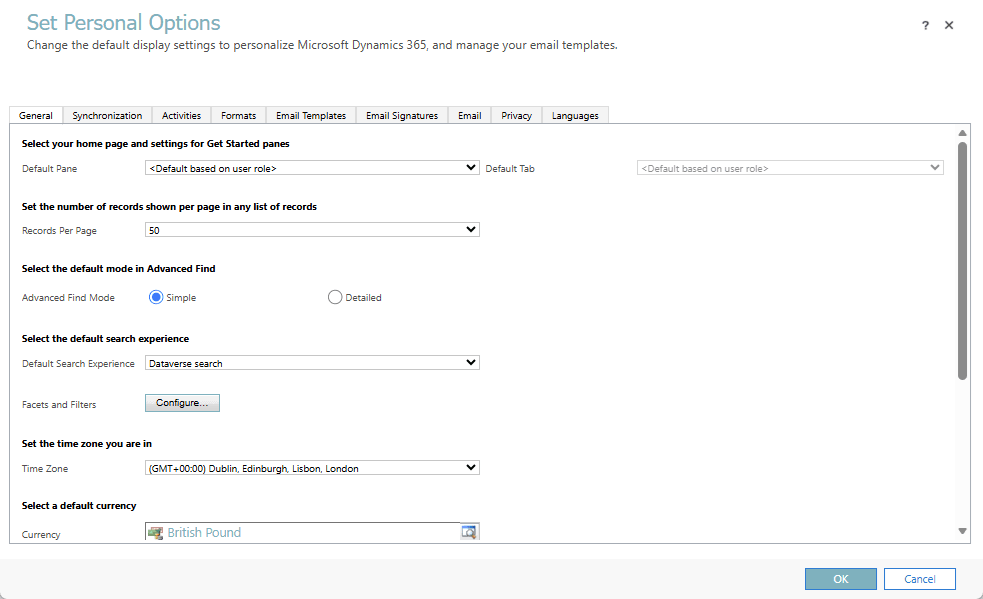
- Ensure that the correct Time Zone is selected for the User’s country.
❗Please Note: We do not recommend to have "Coordinated Universal Time" as the Time Zone.
- Ensure that the correct Currency is selected for the User’s country.
- Do NOT Enable country/region code prefixing if your VOIP system prefixes numbers for you (like Microsoft Teams does).
Activities Tab#
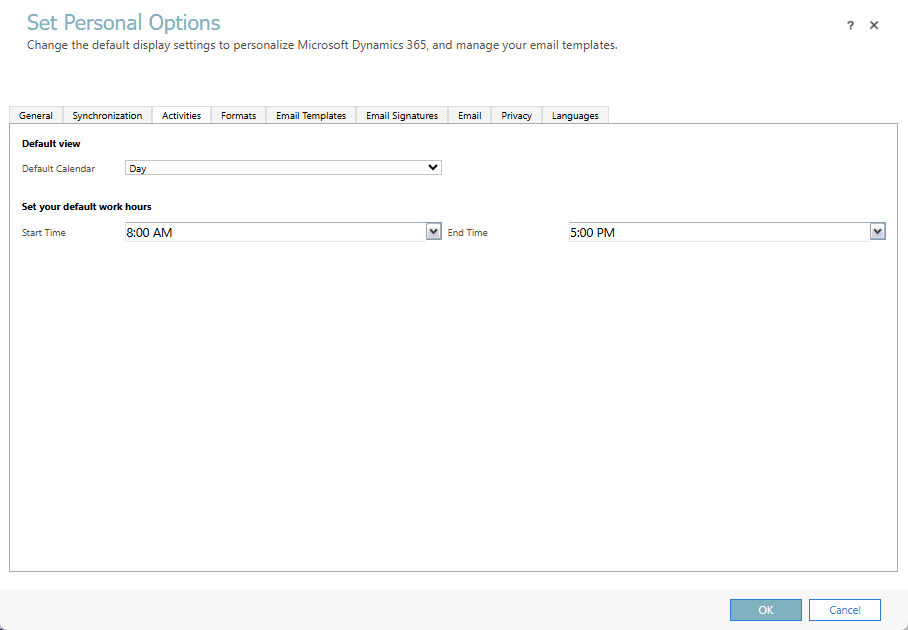
- Set the Default Calendar View (i.e. Day, Week or Month), Activity Start Time and Activity End Time.
Formats Tab#
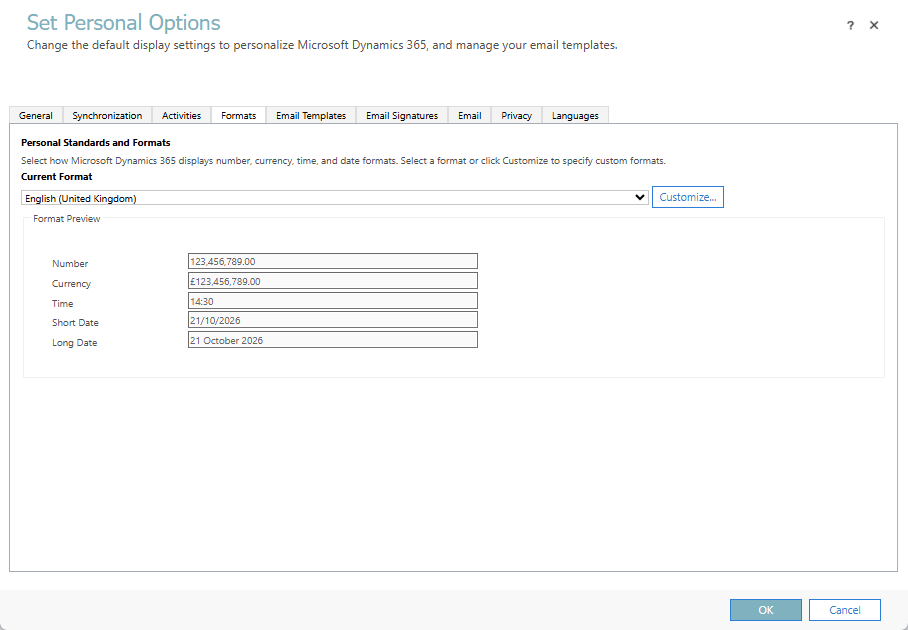
- Ensure the correct Current Format is set for the User’s region (e.g. for the UK, you’d select English (United Kingdom)). You can also further customise the selected Current Format using the "Customize…" button.
Email Signatures#
- Create an appropriate Email Signature.
❗Please note: We recommend using the following solution if you wish to manage these centrally: https://www.exclaimer.co.uk/
Email Tab #
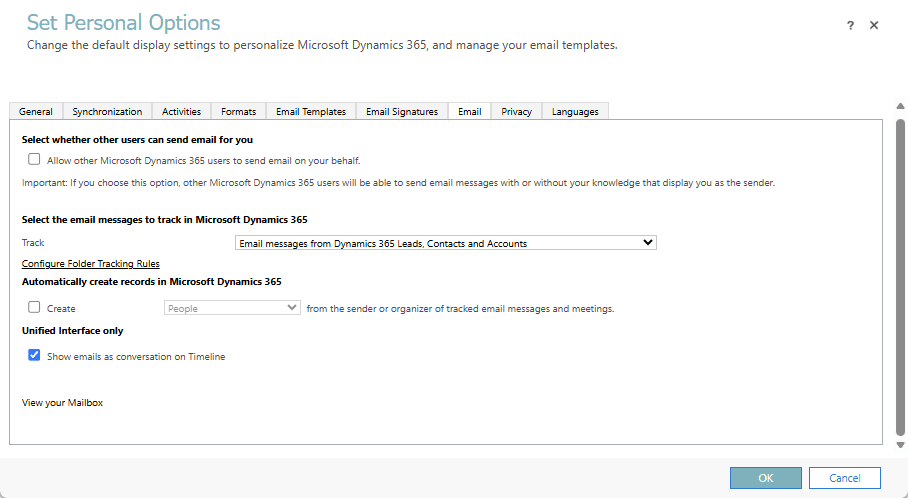
- Ensure that email messages to track in Microsoft Dynamics 365 is set to 'Email messages from Dynamics 365 Leads, Contacts and Accounts'. This will track any email received or replied to within the user's Inbox automatically against these records if the Primary Emails match.
- Ensure that 'Automatically create records in Microsoft Dynamics 365' is NOT ticked to avoid creating a record for every email you receive.
- Ensure 'Show emails as conversation on Timeline' is ticked.
Languages Tab#
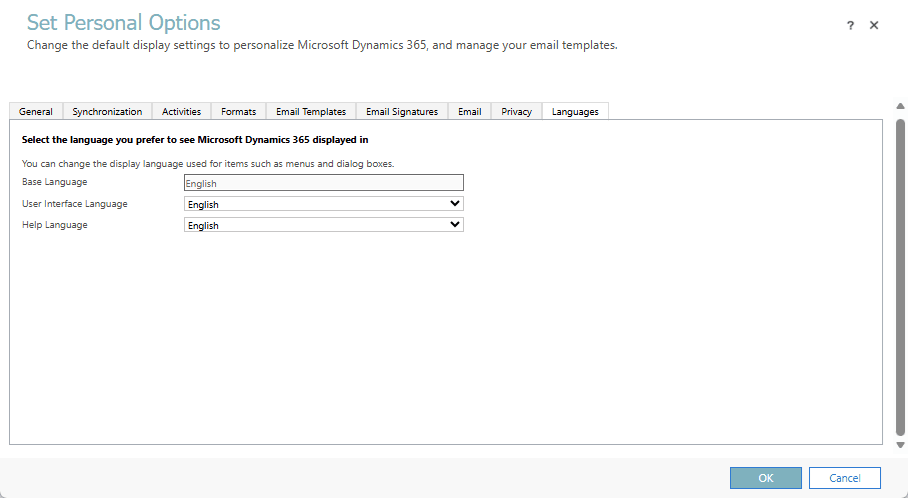
- Ensure that the User Interface Language is appropriate for the User.